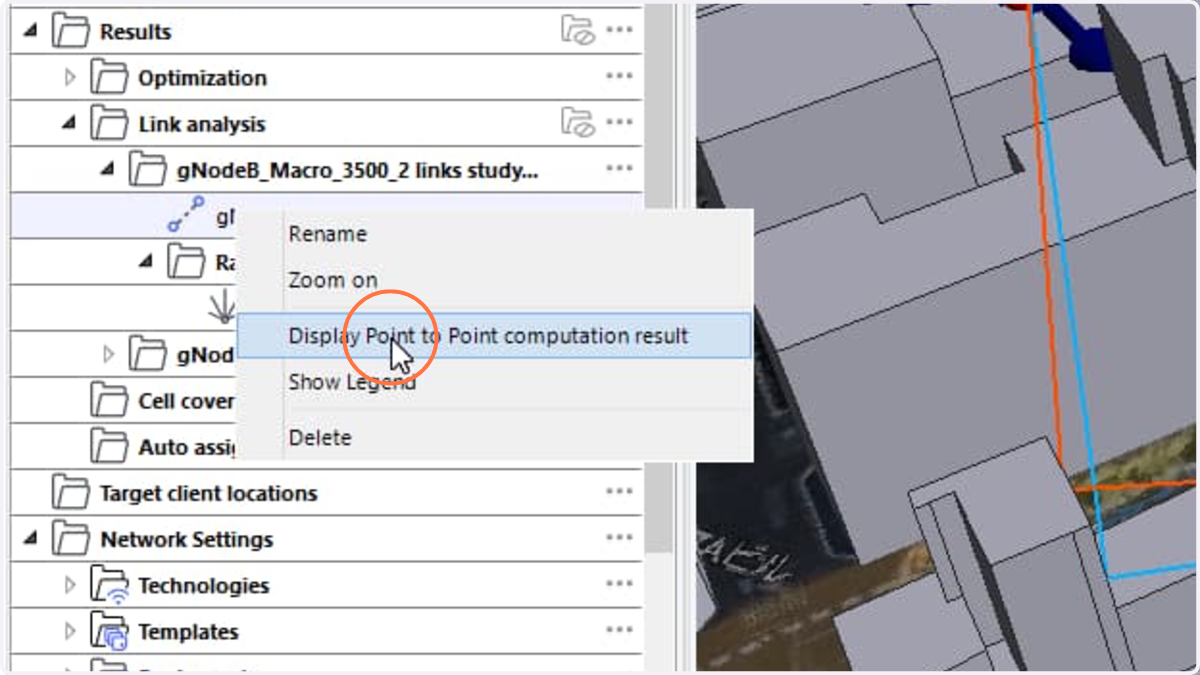
This workflow performs a deterministic link analysis between a single transmitting cell and one or more user equipments (UEs) at fixed location(s). The following is a step-by-step guide to running a link analysis prediction between a serving cell and its UE(s) in Siradel Planner.
1. Make sure that the serving cell has been created and configured in the project.
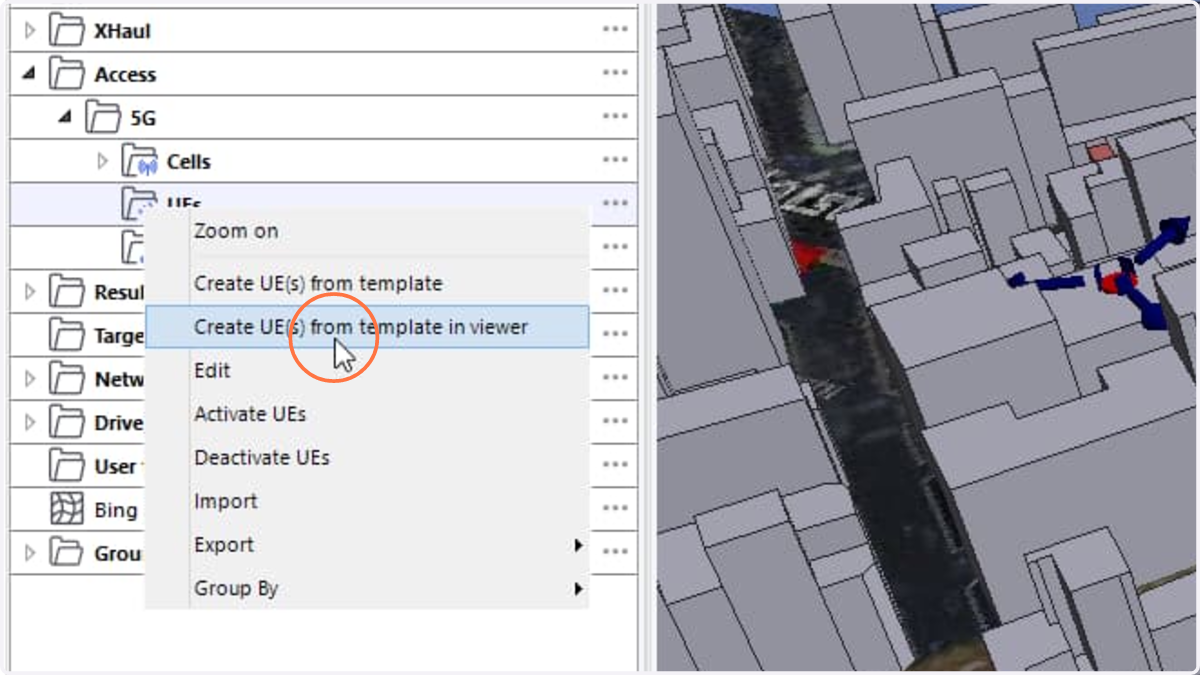
2. Right click 'Access - 5G/LTE - UEs' in the Scene manager window, then choose the appropriate action menu to add an UE to your project.
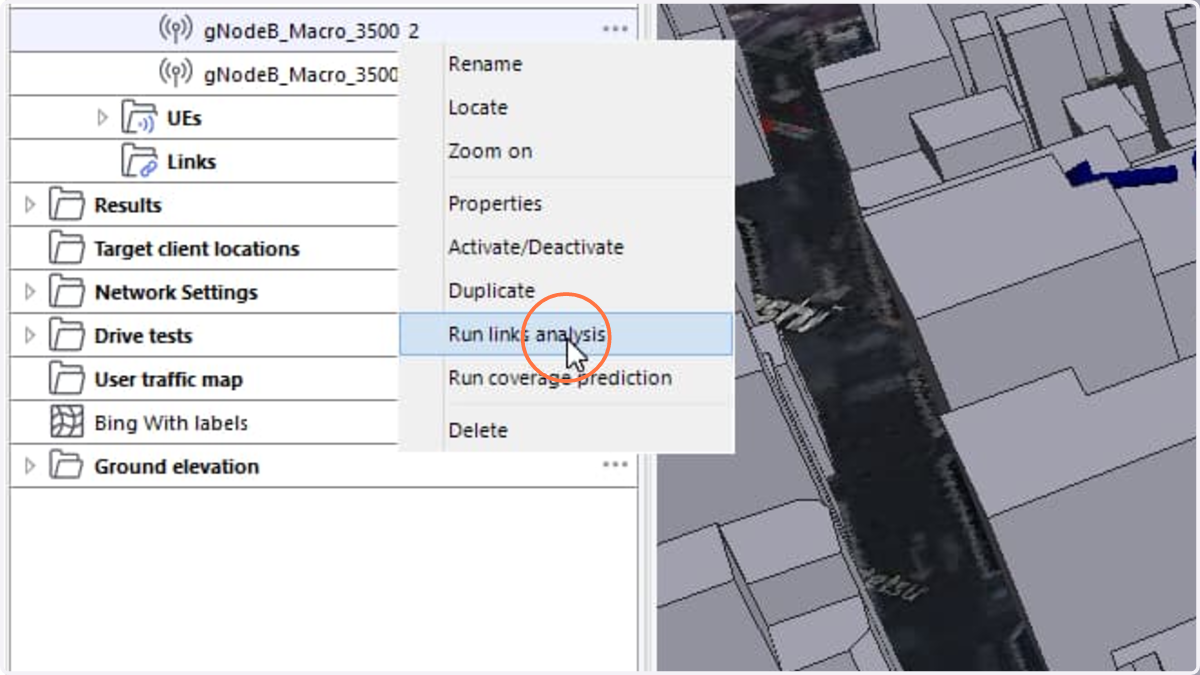
3. Right click the serving cell and select 'Run links analysis'.
4. UE(s) selection: in the Link Analysis window, use the Up/Down buttons to select or deselect the UE(s) to include in the prediction. The analysis can be run as a point-to-multipoint prediction, evaluating the link from the cell to several UEs at once. Ensure that each selected UE lies within the cell's range distance.
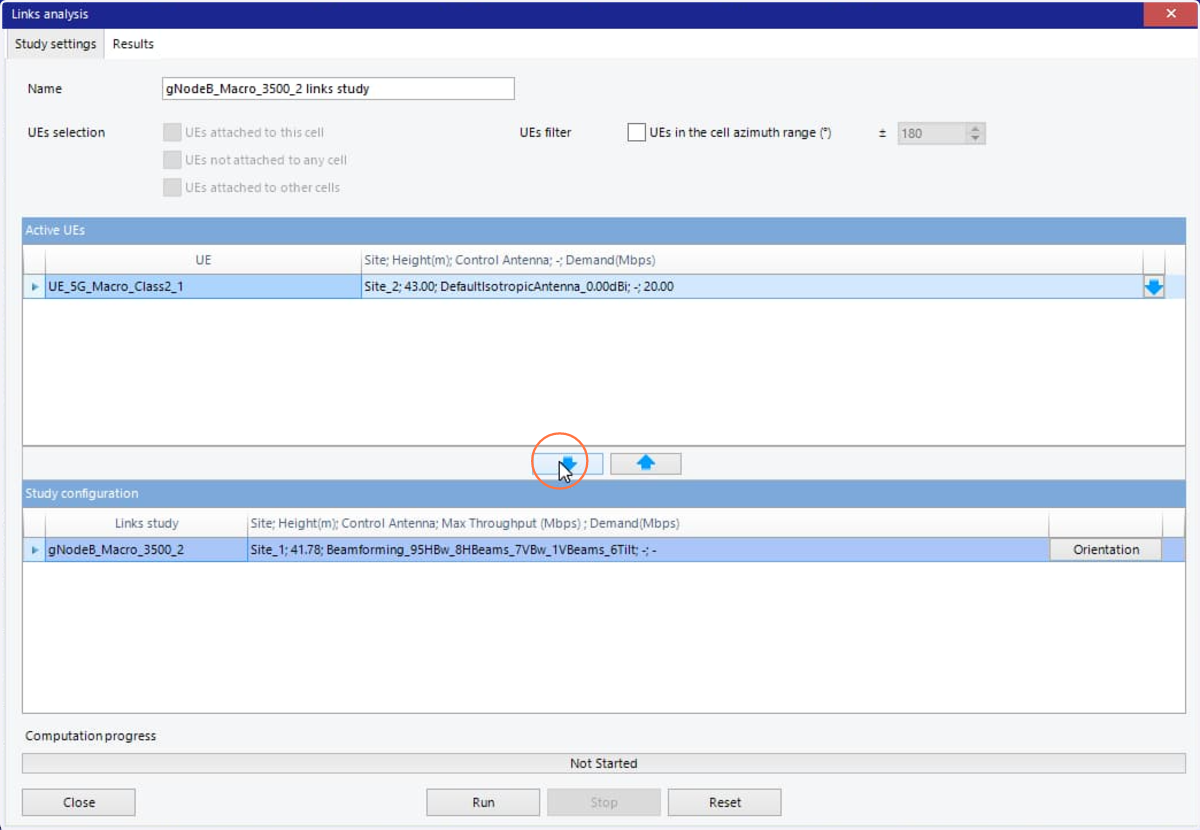
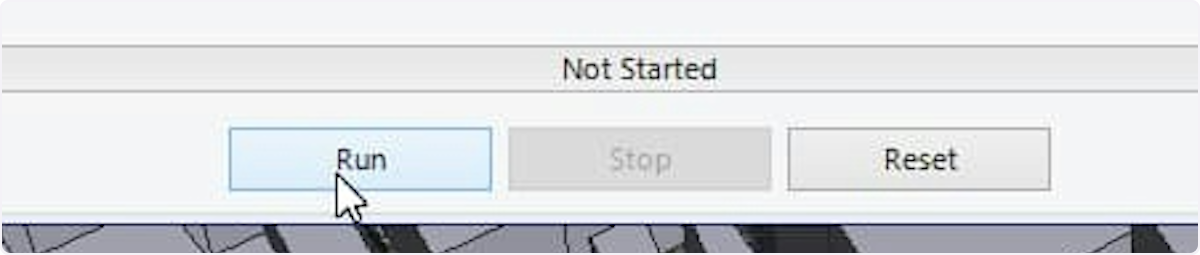
5. Click 'Run' button to launch the prediction.
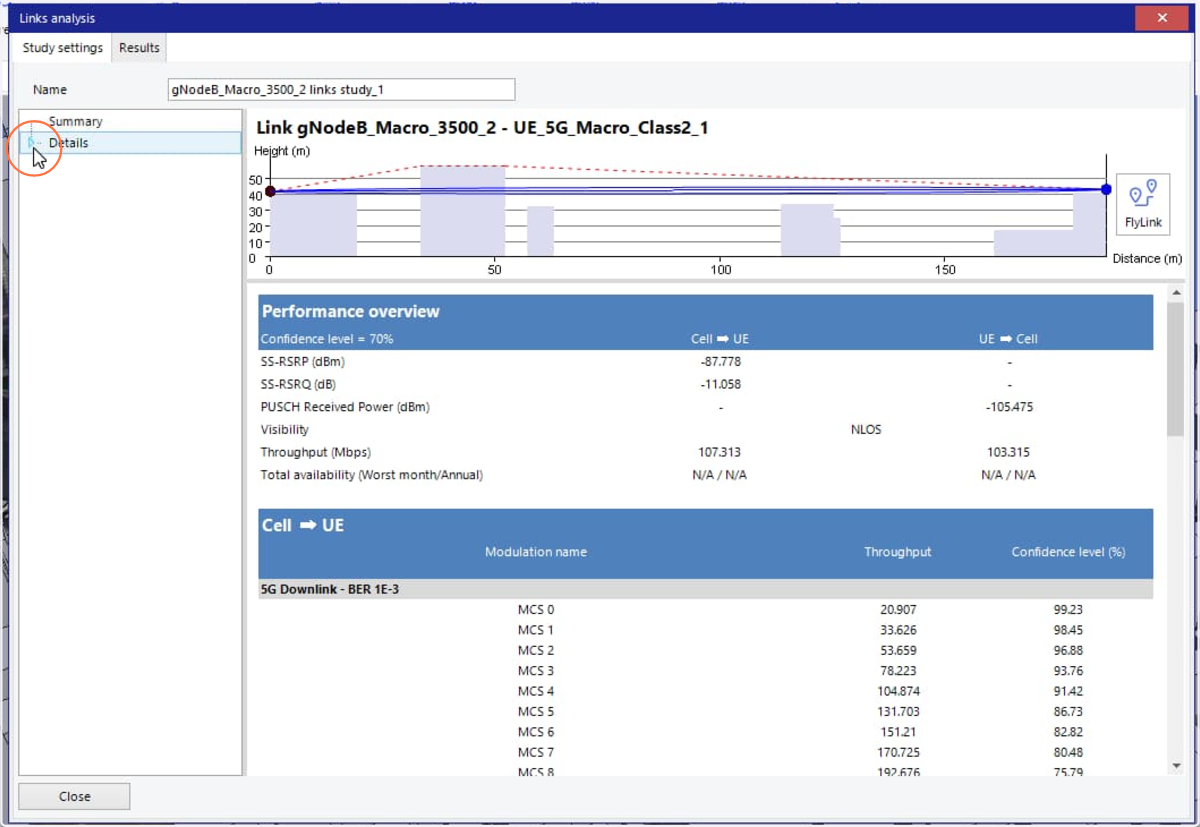
6. The link analysis report will be displayed. For a point-to-point link analysis report, click on 'Details' node to extend the detailed information.
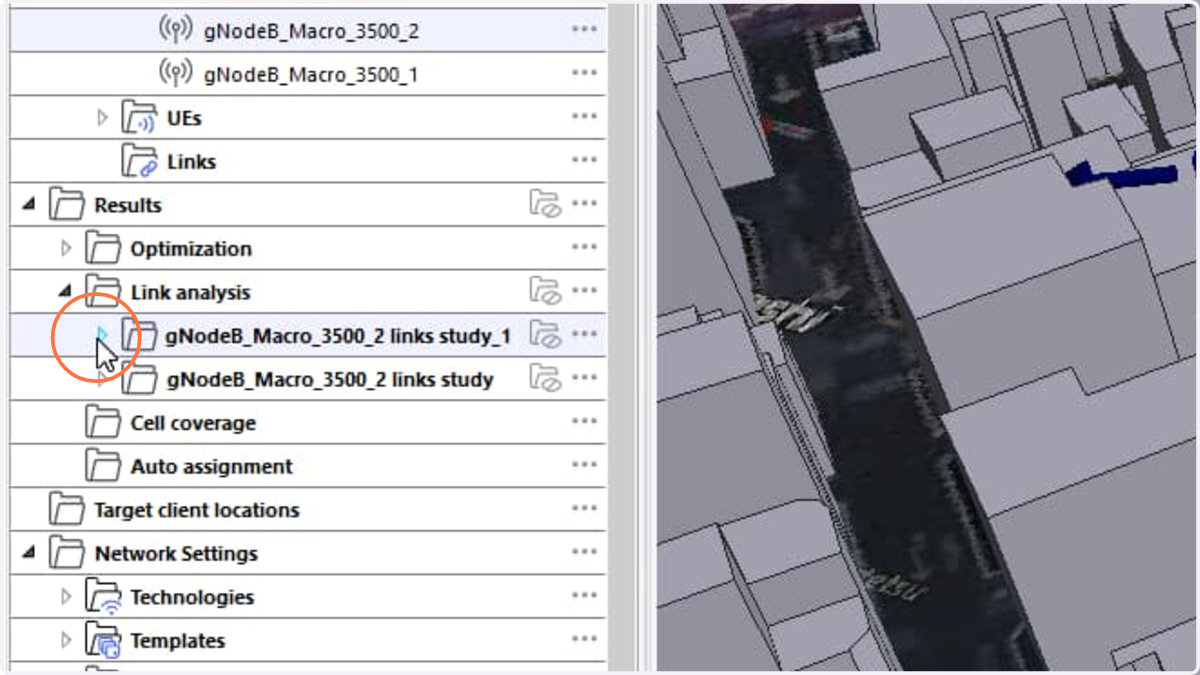
7. You can also go to 'Results - Link analysis', right click on the link analysis result and select 'Display links study result' to show the report.
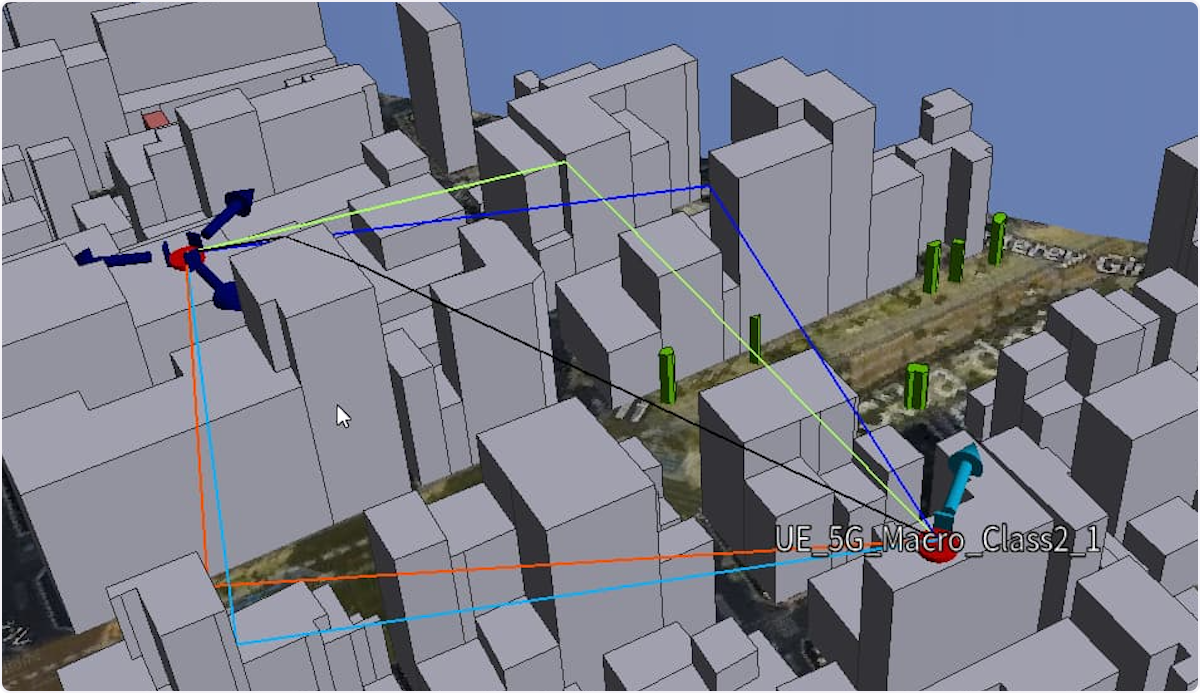
8. Click the Eye icon next to the 'Ray paths' folder to show or hide the Ray paths visualization.
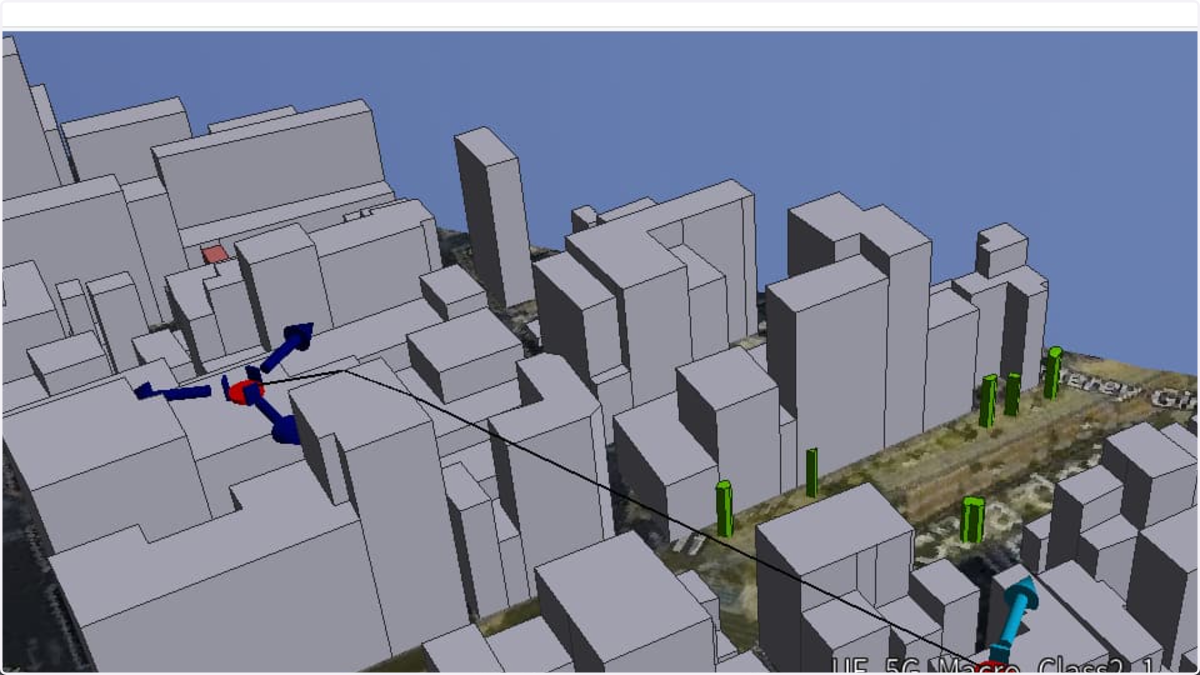
9. Ray paths visualization in the Scene.
10. For Point-to-Multipoint predictions, right-click a specific link's result and select the 'Display Point-to-Point Computation Result' action to view the detailed link analysis report for that link.