This page explains how to transfer files between the Siradel Planner SaaS Platform and your local machine. Watch the video for a walkthrough of the full workflow, or follow the written steps below. Both cover the same procedure — use whichever suits you.
Video walkthrough
Step-by-step instructions
Uploading files from your local machine to the Siradel Planner SaaS platform
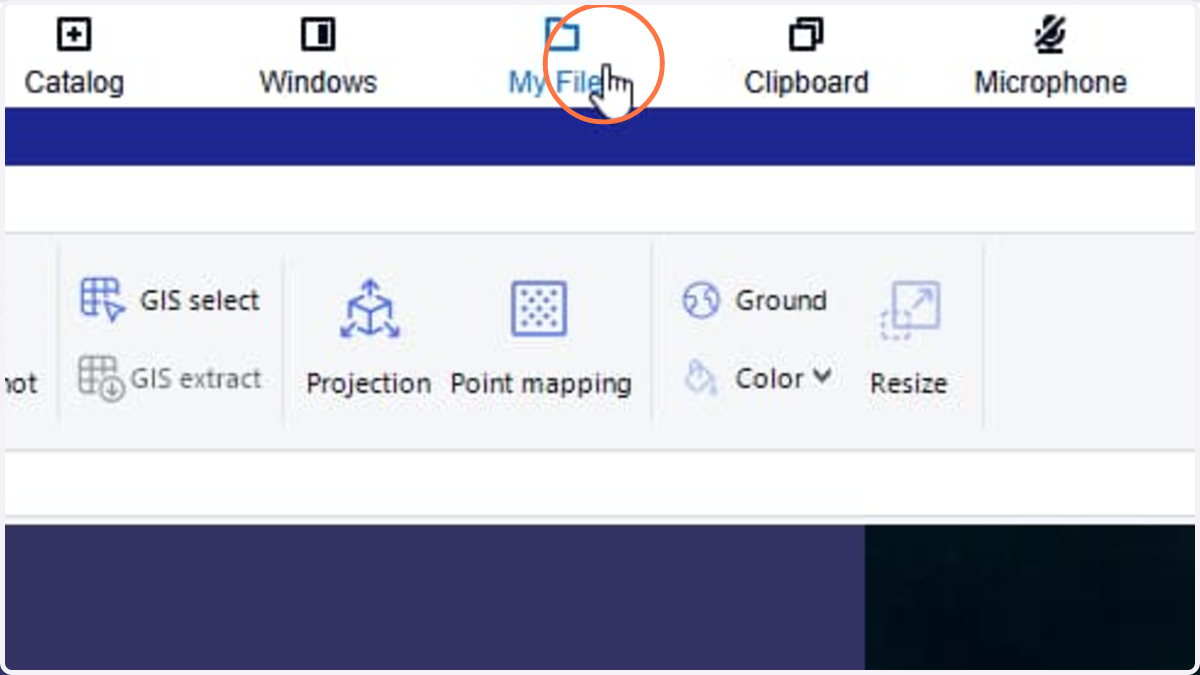
1. Click the My Files button
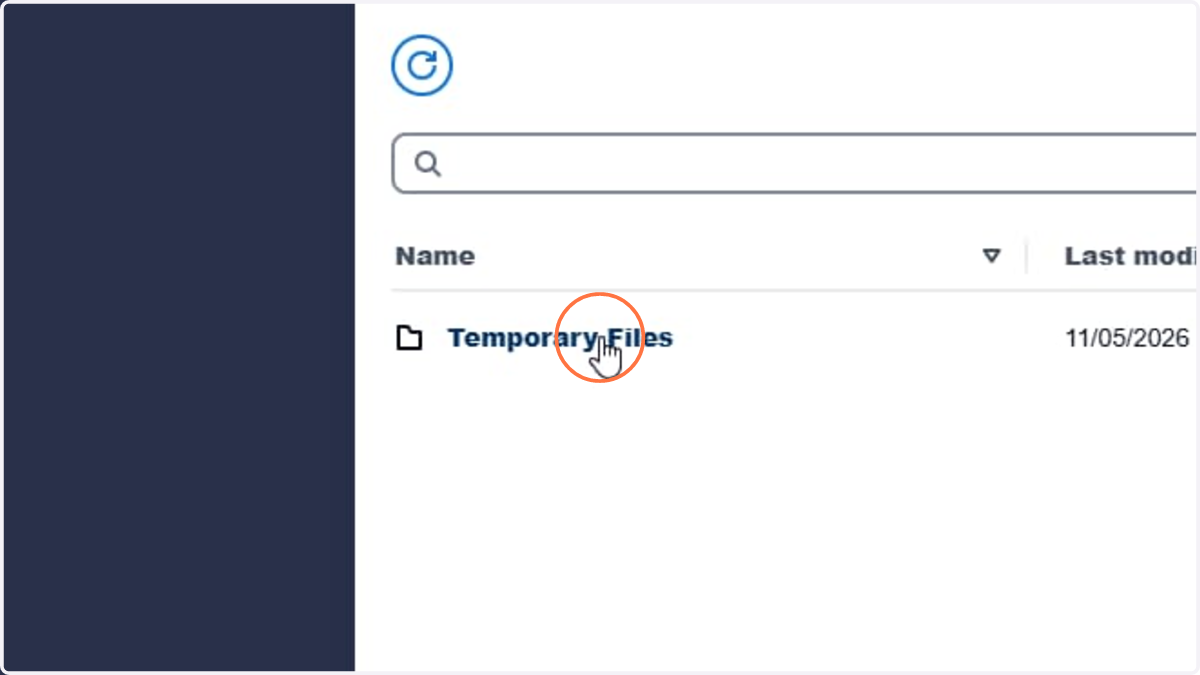
2. Click Folder Temporary Files
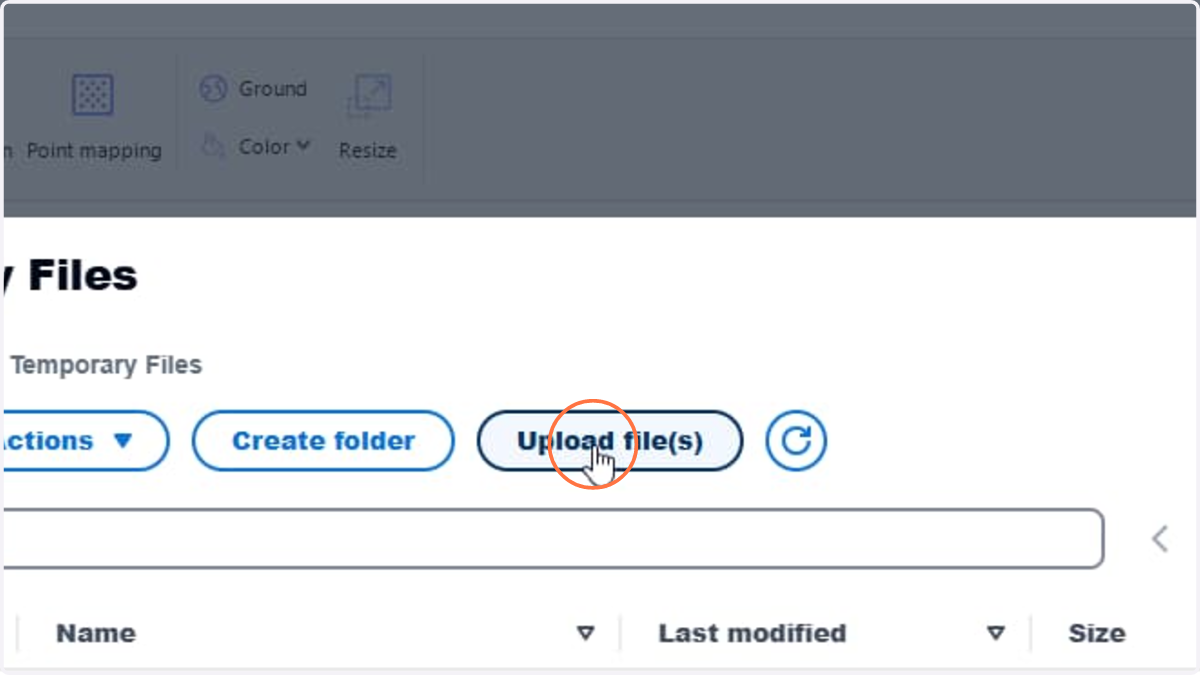
3. Click Upload file(s)
4. Select a file or multiple files to upload.
Tip: it is recommended to zip a folder and upload the compressed file.
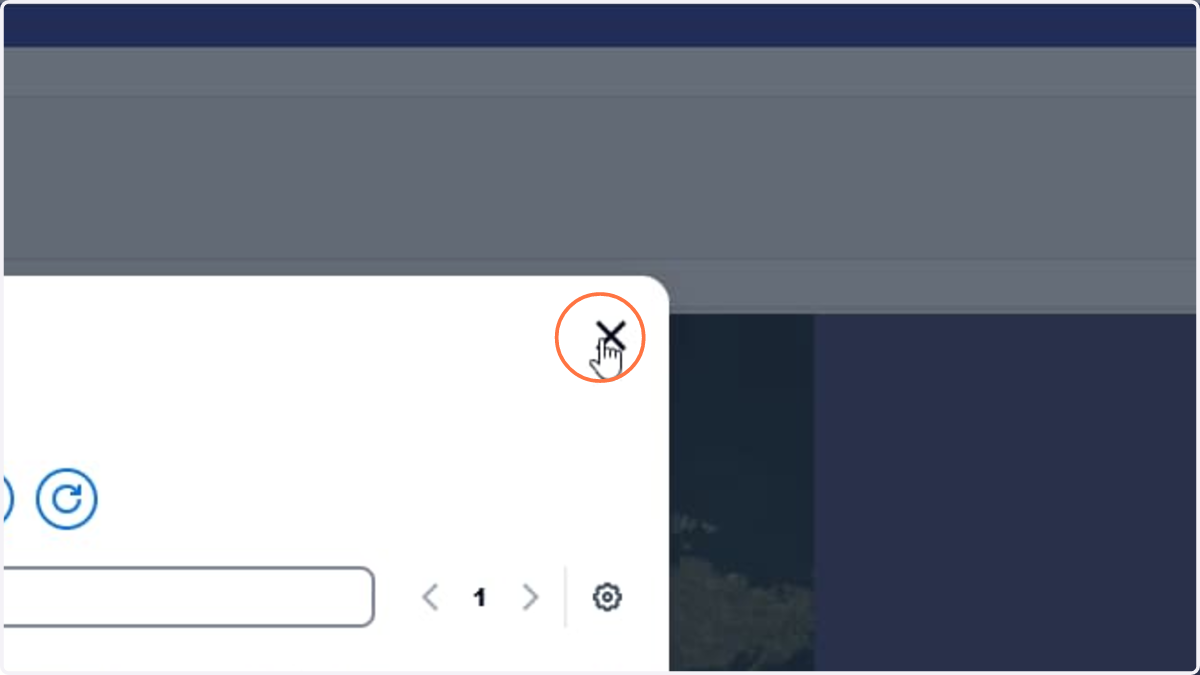
5. Once the file(s) are uploaded, click Close
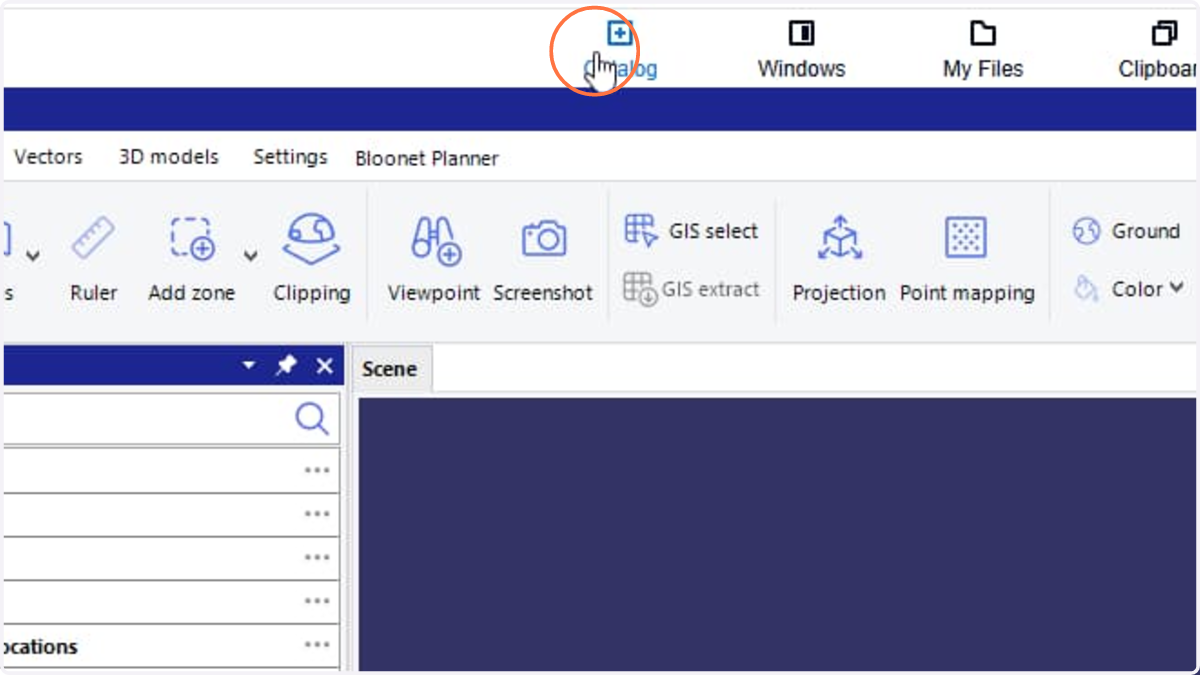
6. Click Catalog dropdown
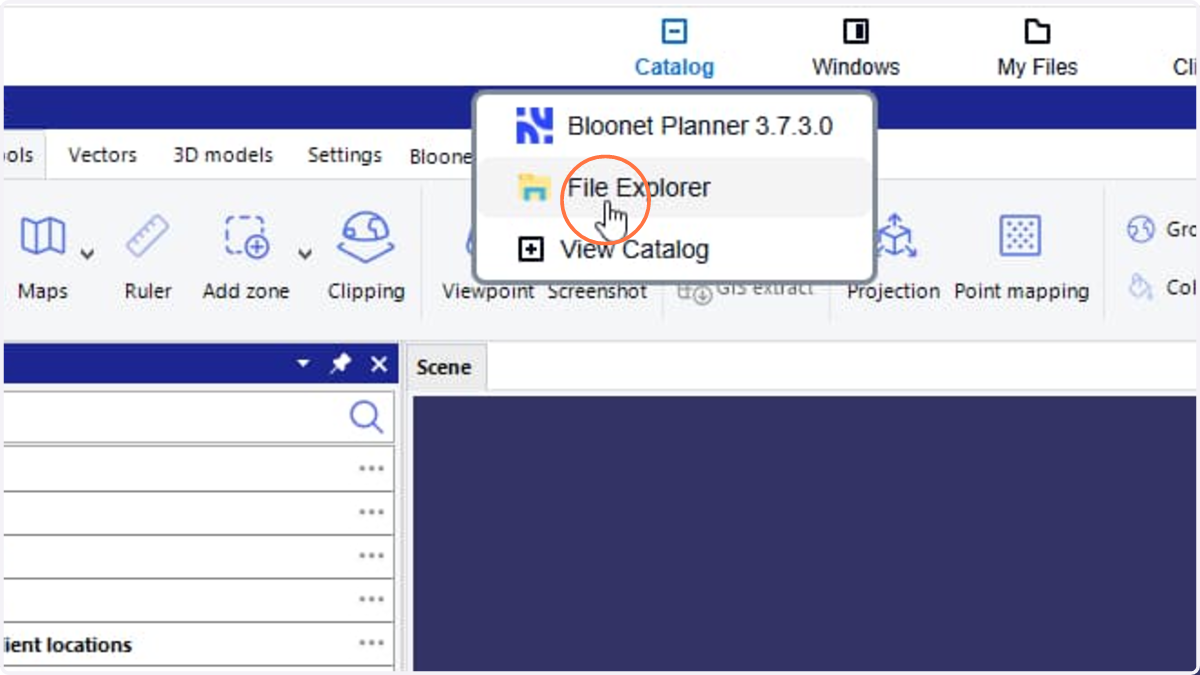
7. Click File Explorer menu
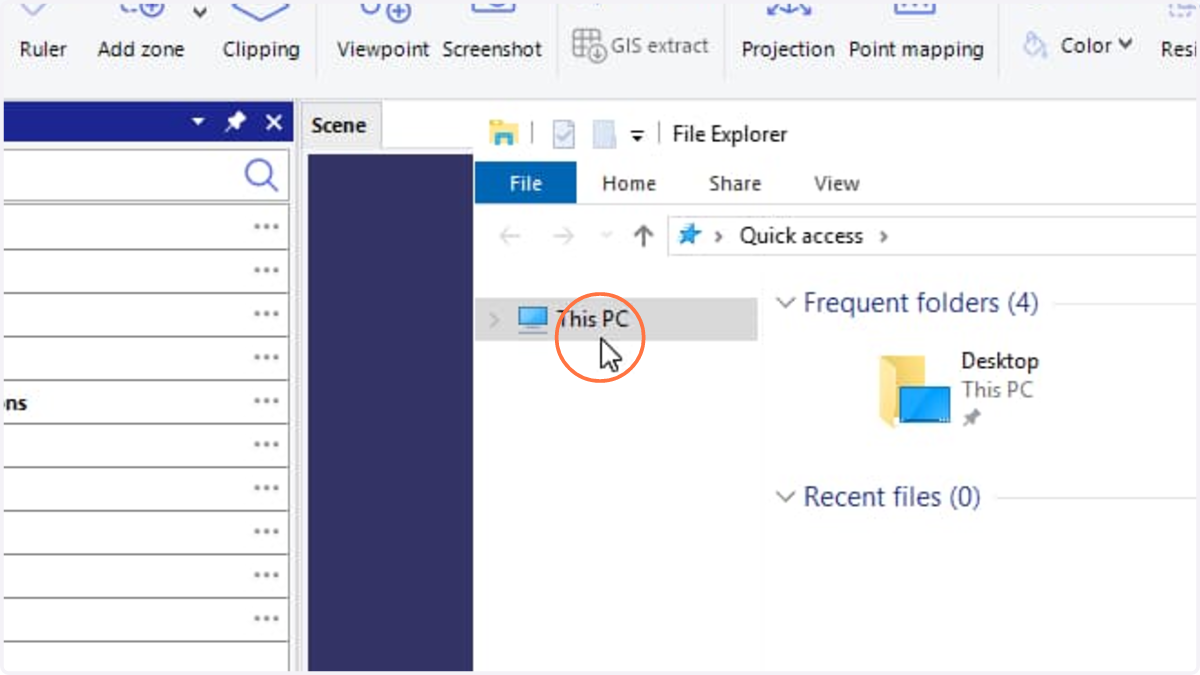
8. Click This PC
9. Double-click Temporary Files
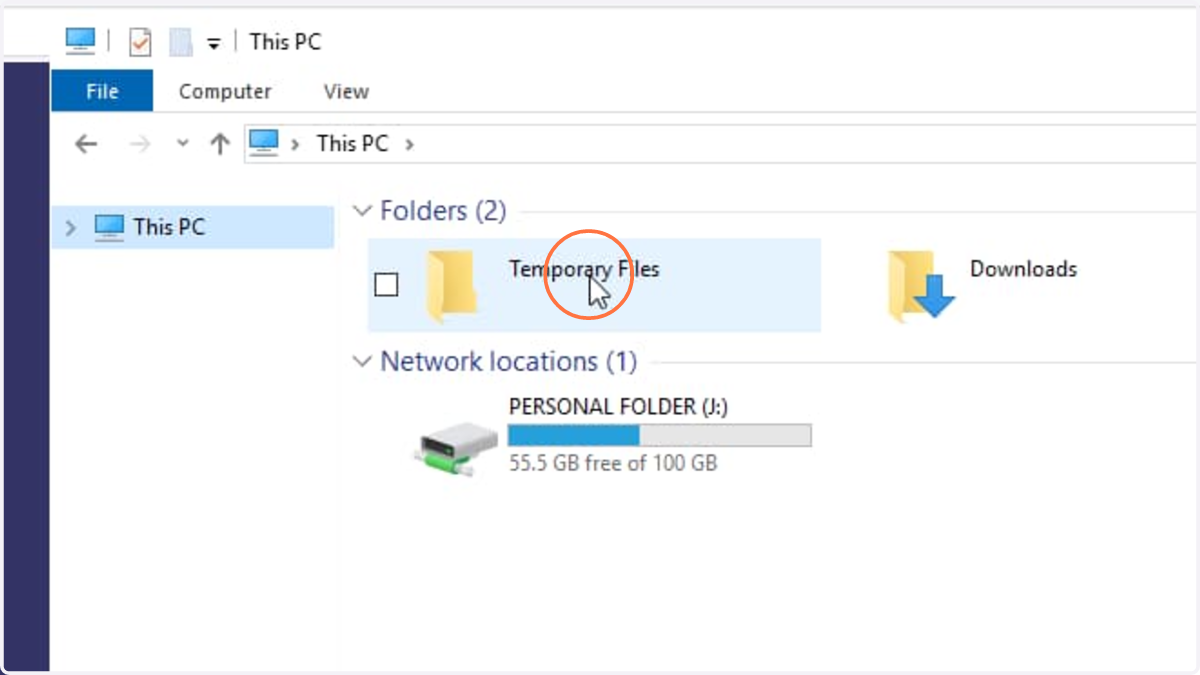
10. Press Ctrl + C to copy one or multiple files under Temporary Files folder.
Tip: After each SaaS session ends, all files in the Temporary Files folder will be deleted.
11. Click This PC
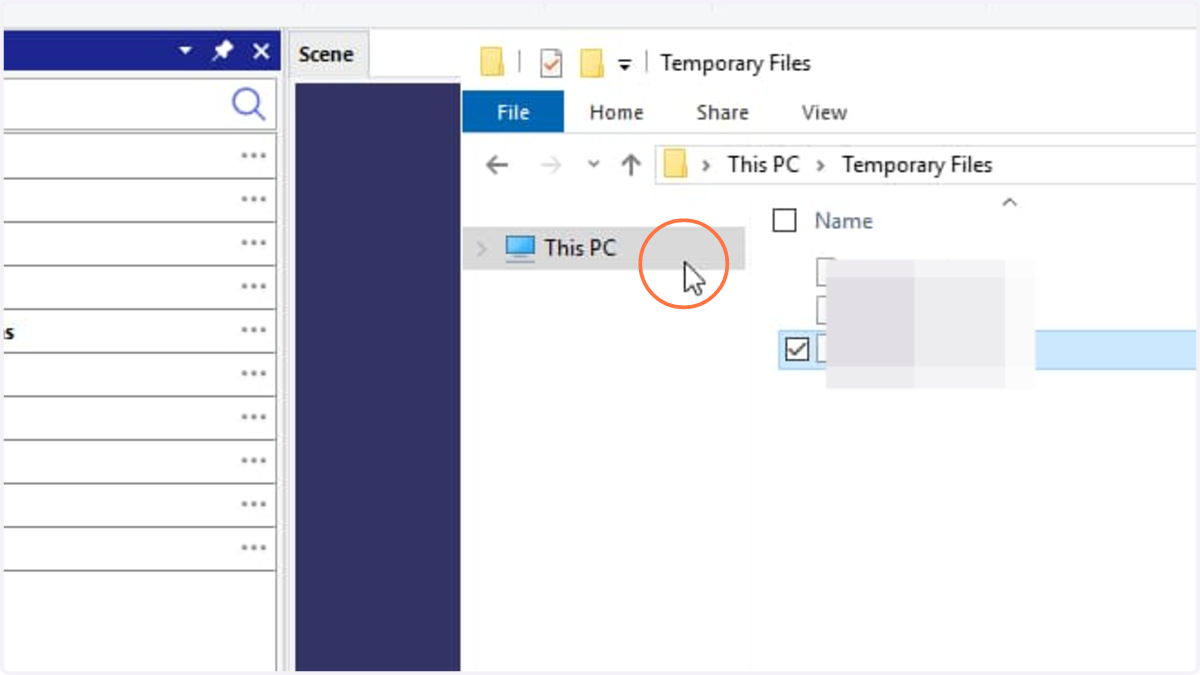
12. Double-click Personal Folder
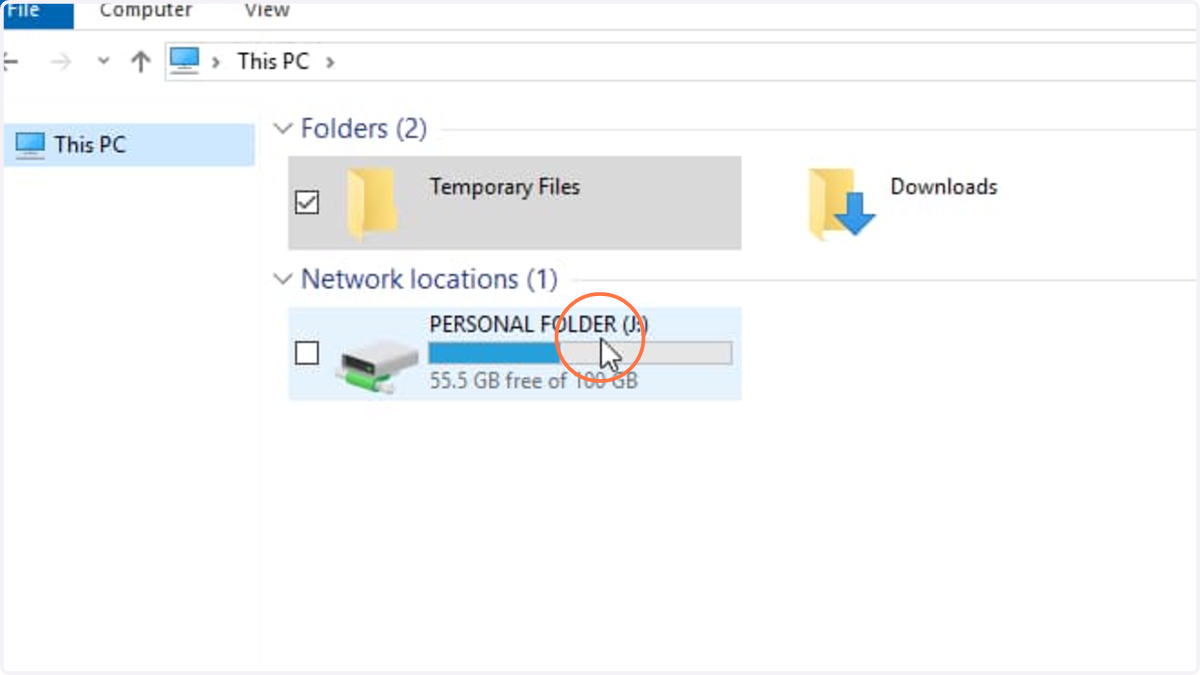
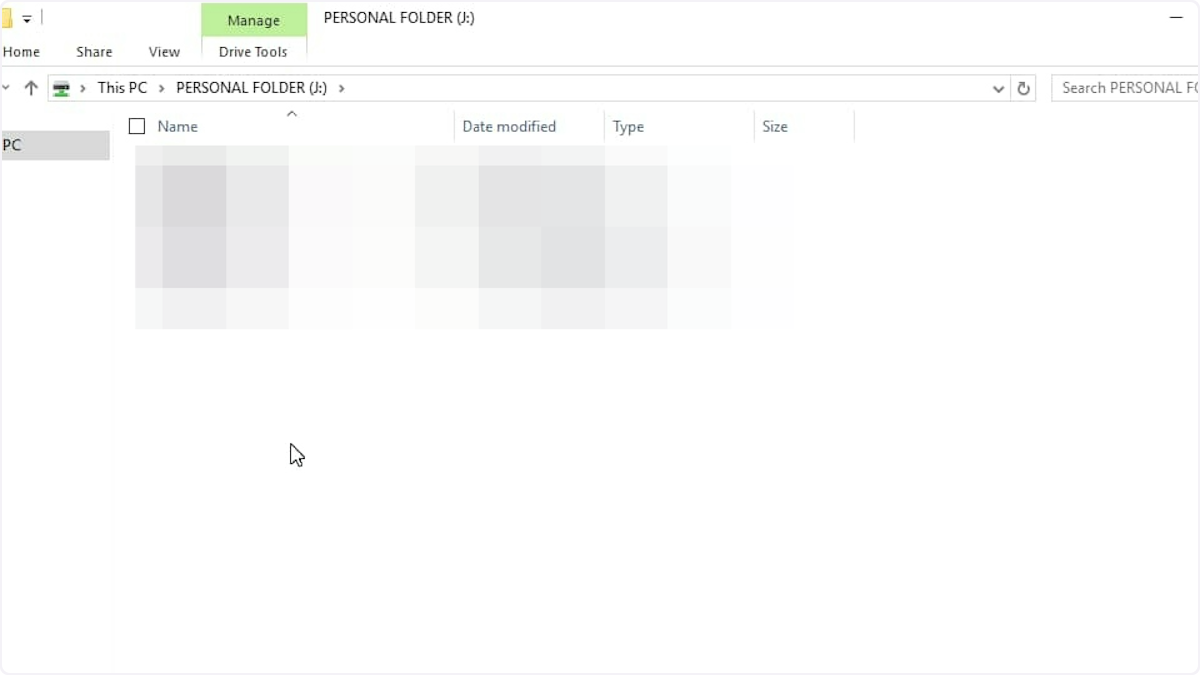
13. Select the target place and Press Ctrl + V to paste the file(s)
Downloading files from the Siradel Planner SaaS platform to your local machine
-
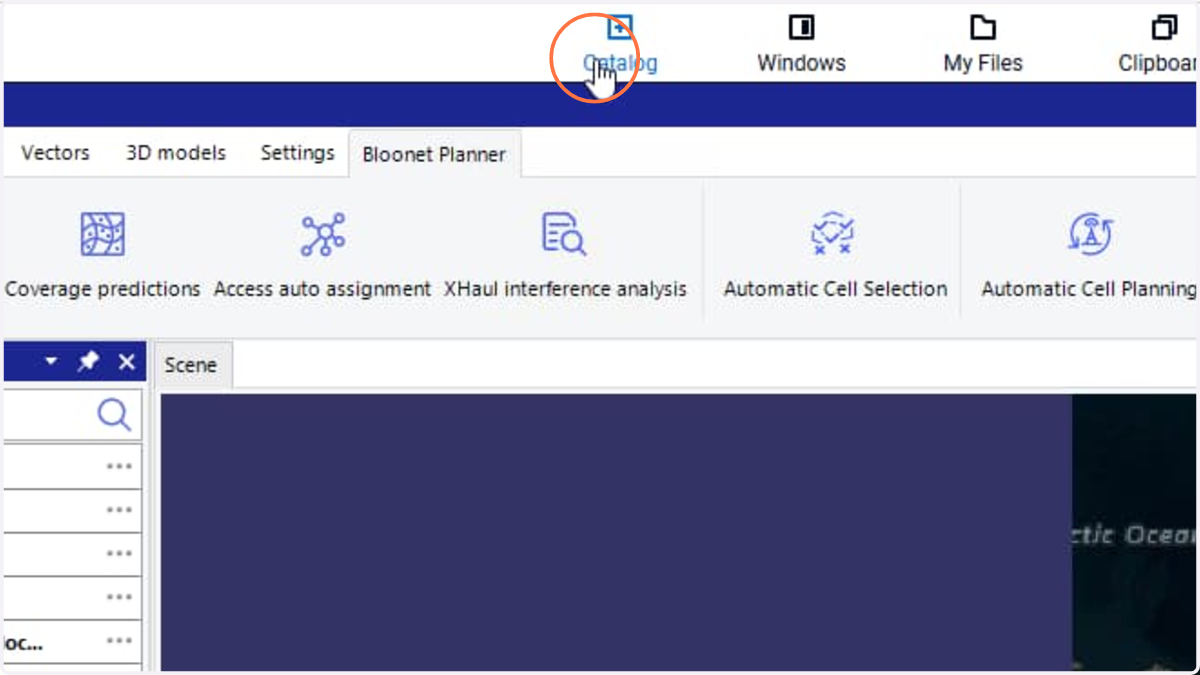
Click Catalog dropdown
-
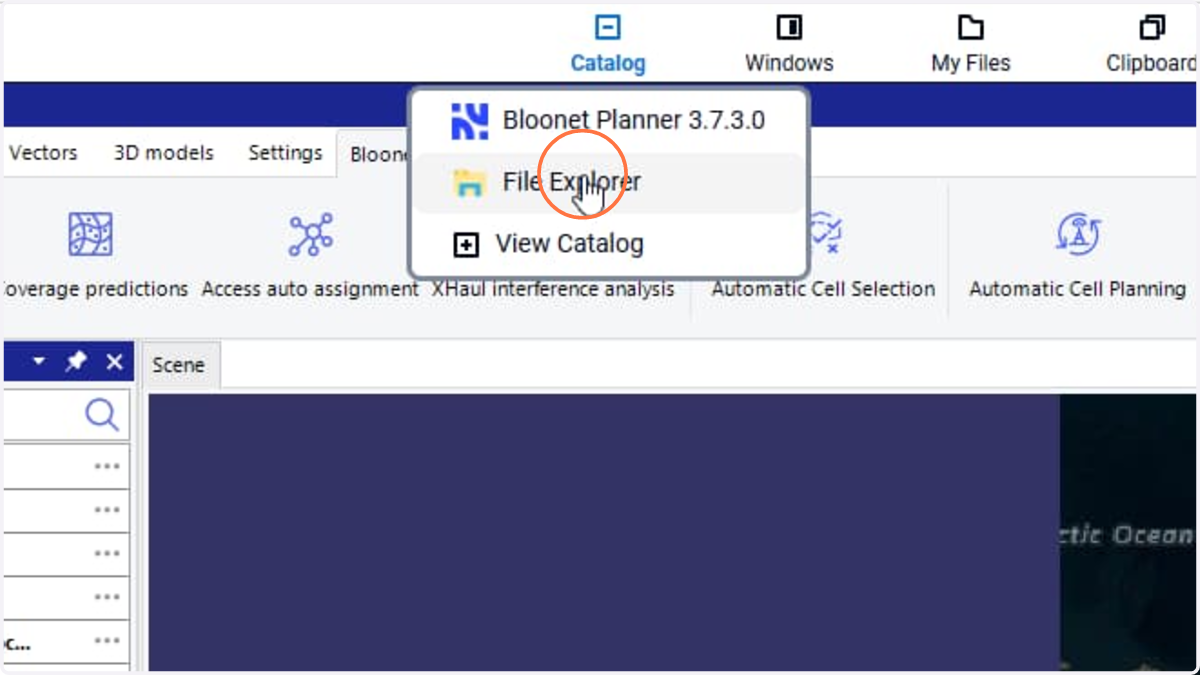
Click File Explorer
-
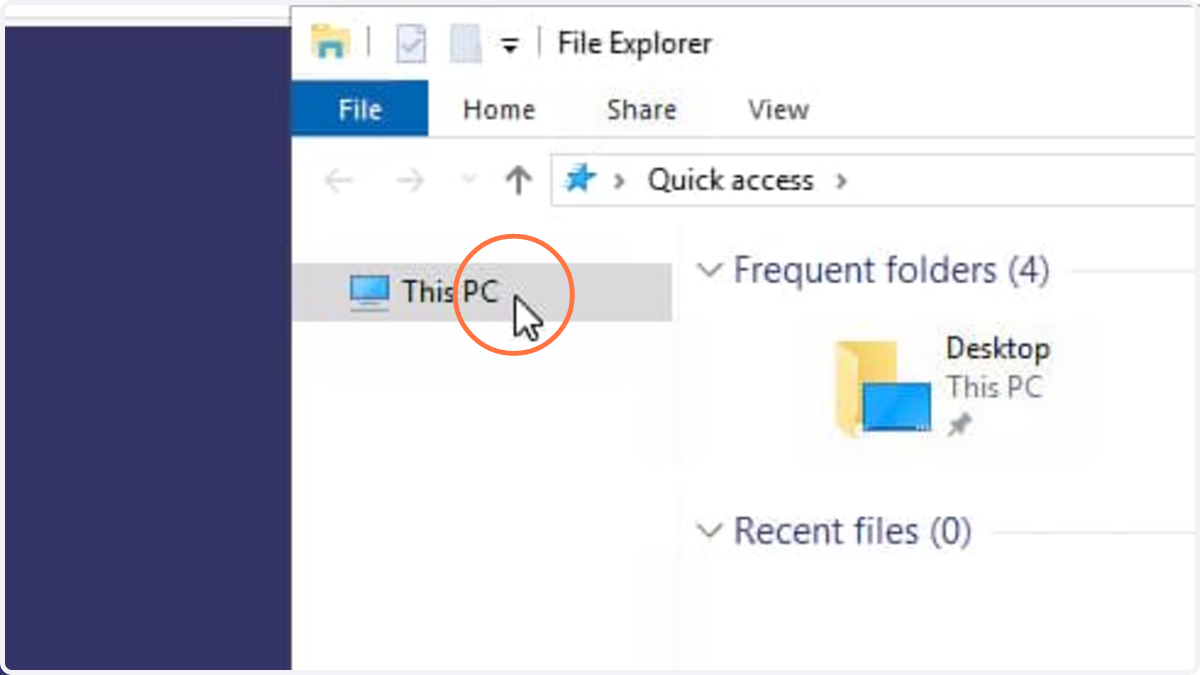
Click This PC
-
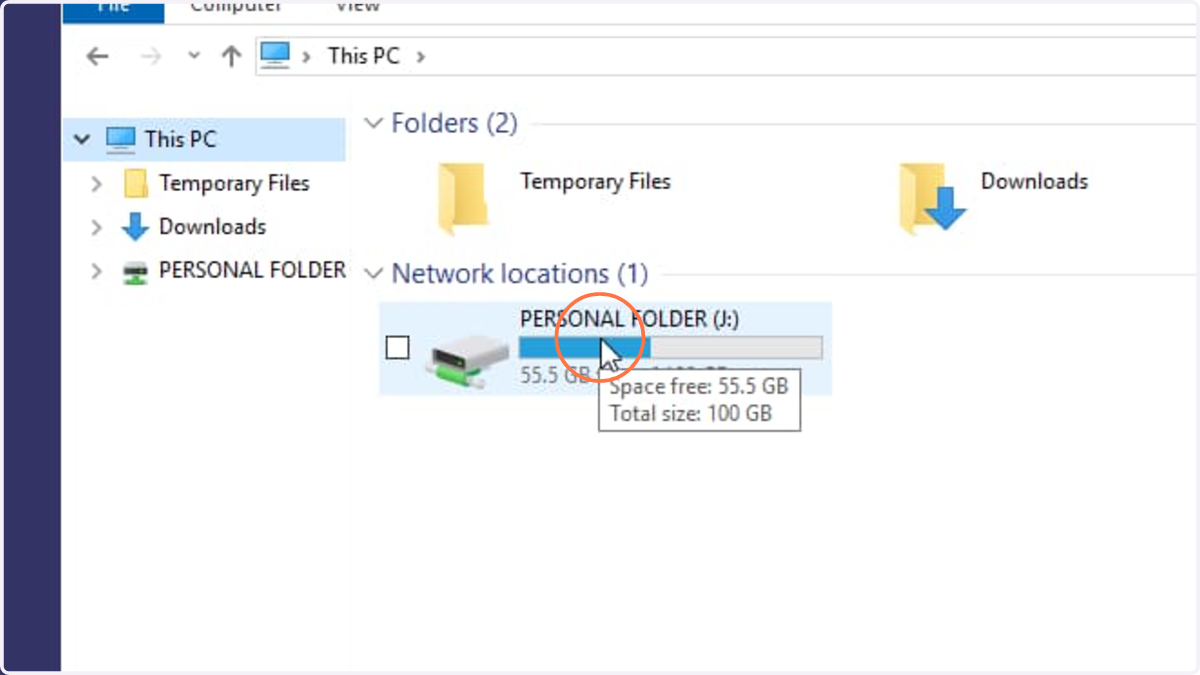
Double-click Personal Folder
-
Select the file(s) to download and press Ctrl + C
-
Click Temporary Files
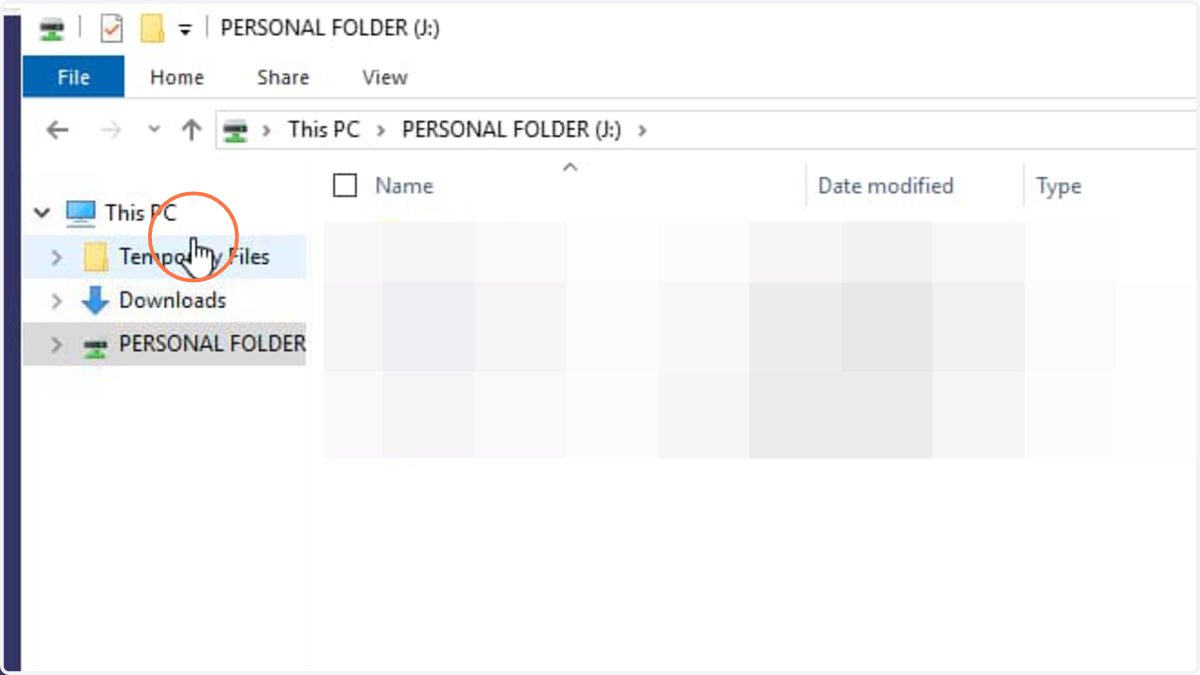
-
Press Ctrl + V to paste files to download
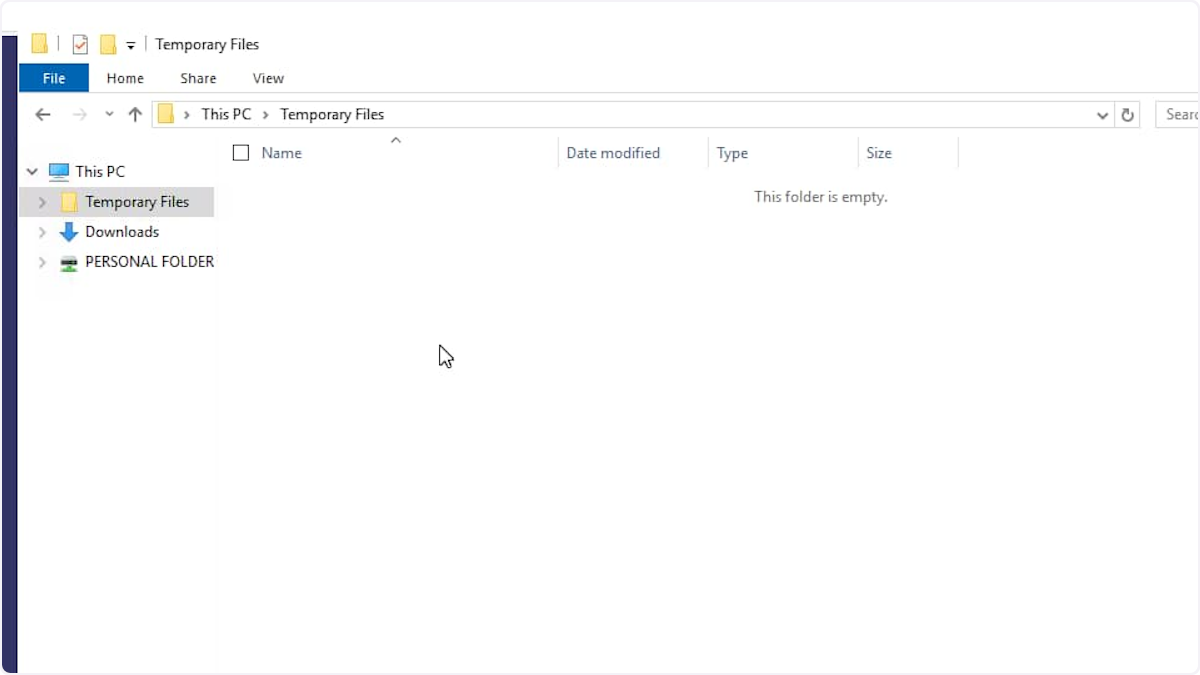
-
Click the My Files button
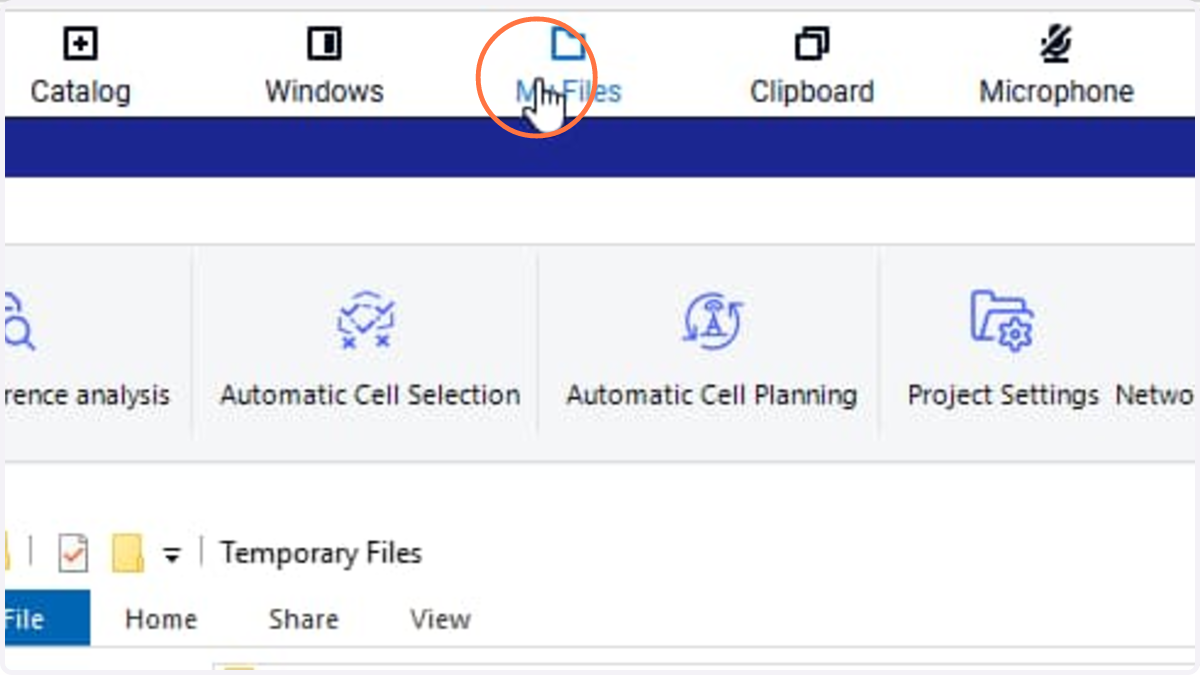
10. Click Folder Temporary Files
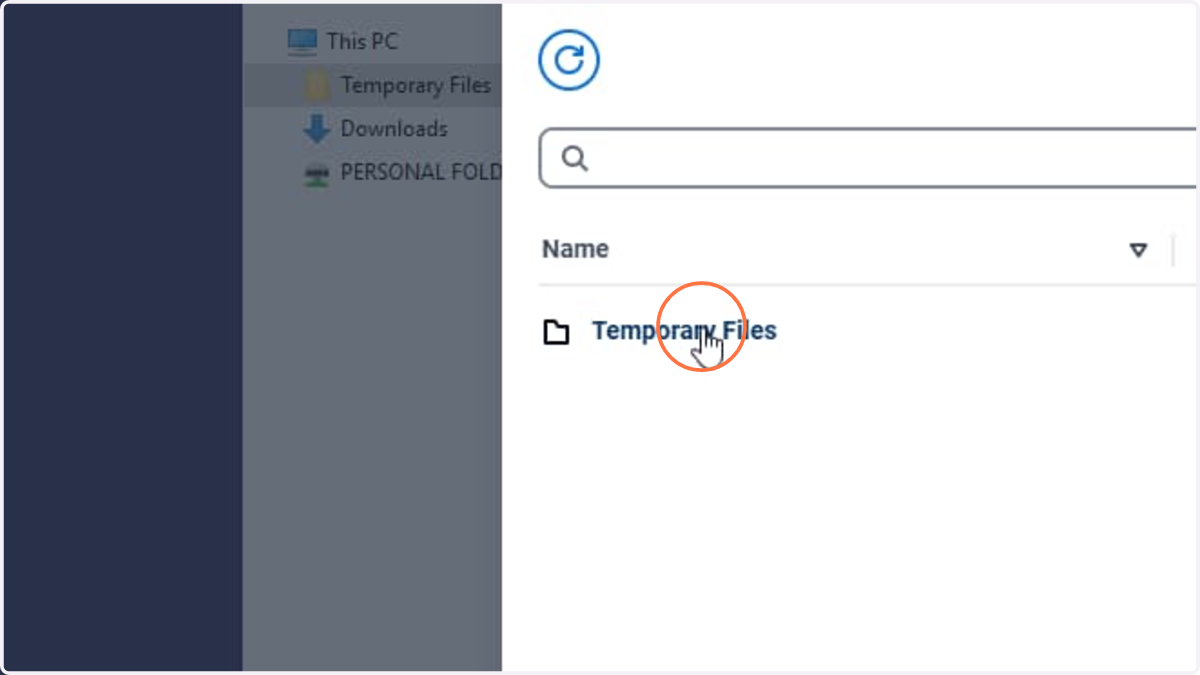
Click the My Files button
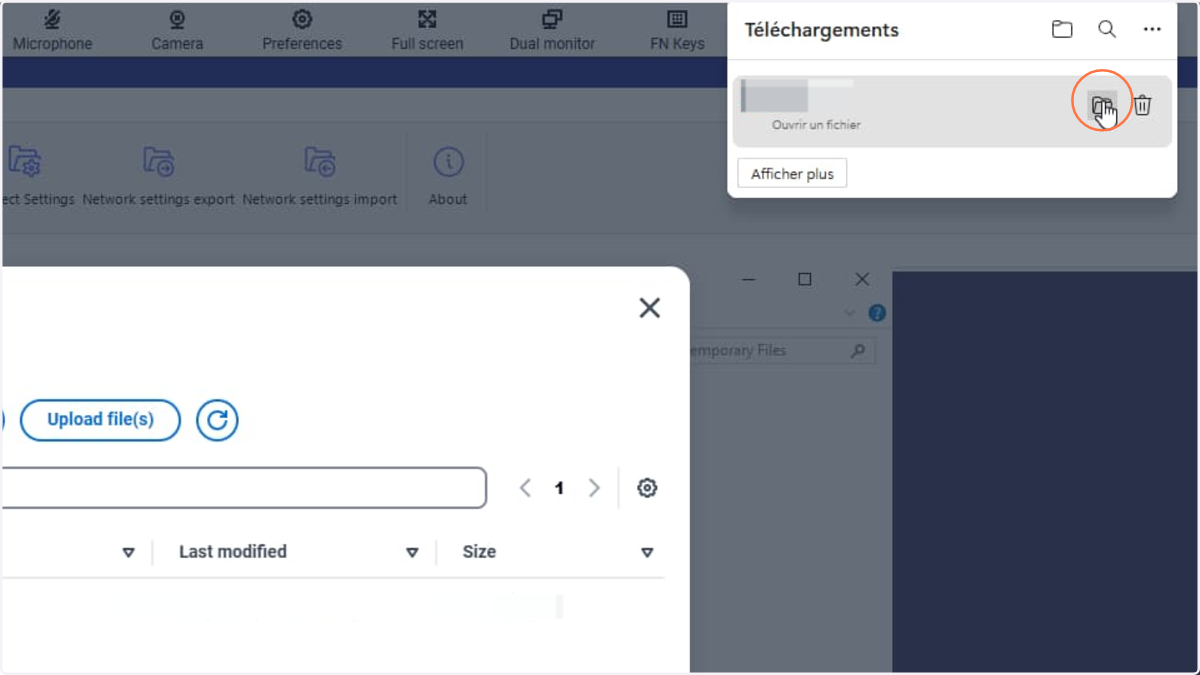
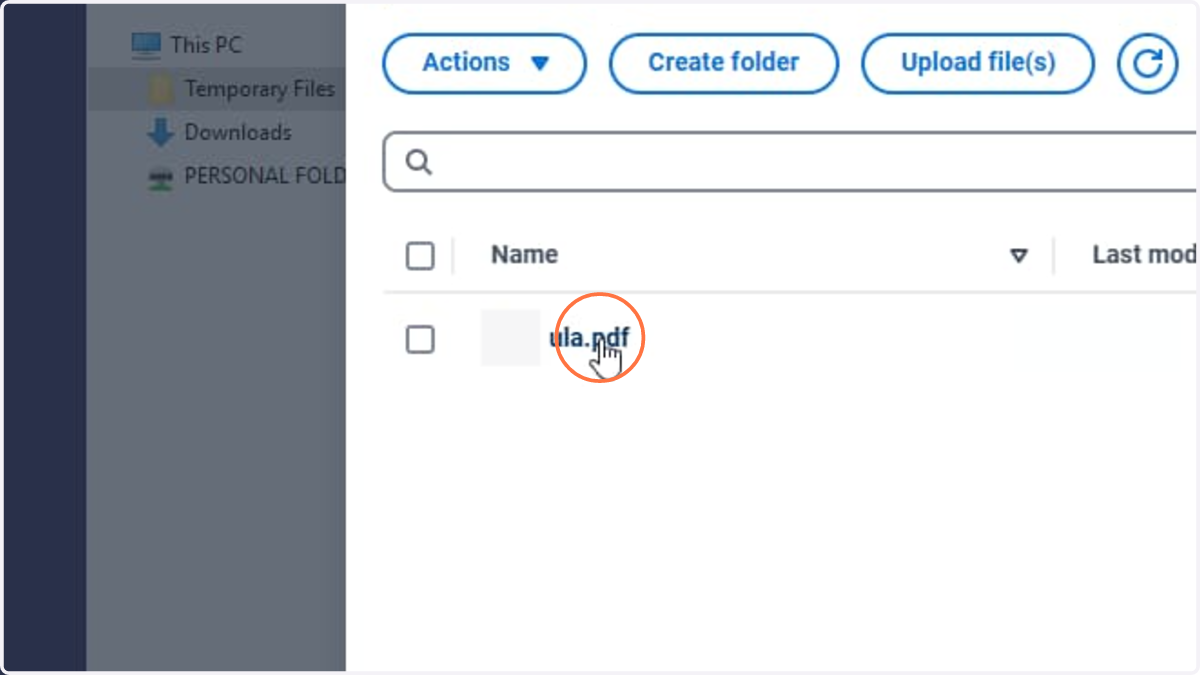
11. Click the file(s) to download
12. Once the file(s) are downloaded, open your Downloads folder on local PC