
When using GIS extract button to download map data from Siradel SaaS platform, the information message "There is no data to import over this area" typically appears when the project is using an incorrect UTM projection zone.
Why This Happens
When you start a new, empty Planner project, Planner automatically applies the correct UTM projection based on your location. However, if you previously worked in a different UTM zone and then try to download map data in a new geographic area, the system may search for data in the wrong projection. This mismatch leads to the message:
"There is no data to import over this area."
Step 1 — Identify the Correct UTM Projection
Before downloading map data, verify the UTM zone of your study area. Once you know the zone and hemisphere, you can determine the proper EPSG code.
You may refer to steps decribed in Find UTM Zone for an Address to find the UTM zone of a specific address.
Step 2 — Determine the EPSG Code
Use the following rule:
EPSG Codes for UTM Zones
-
Northern Hemisphere:
EPSG:326XX -
Southern Hemisphere:
EPSG:327XX
Where XX = UTM zone number (01–60).
Examples
|
UTM Zone |
Hemisphere |
EPSG Code |
|---|---|---|
|
31N |
North |
EPSG:32631 |
|
18N |
North |
EPSG:32618 |
|
56S |
South |
EPSG:32756 |
Step 3 — Select the Correct Projection in Planner
-
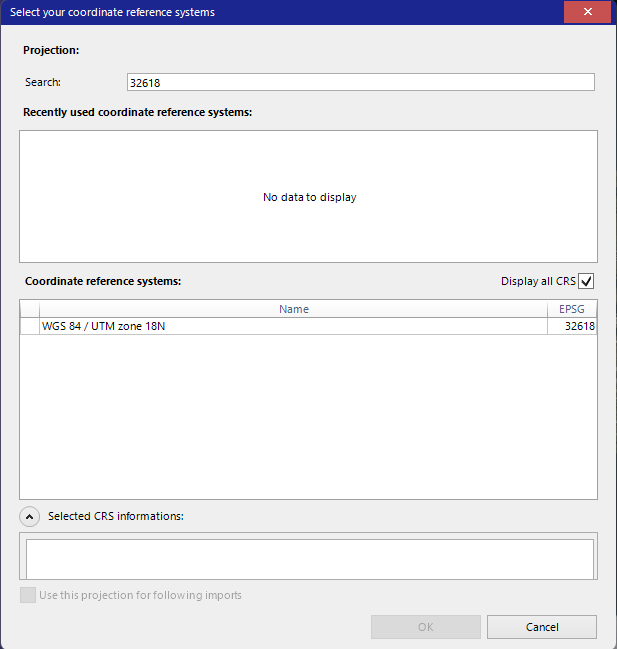
Open the Select your coordinate reference systems window by clicking on the Tools toolbar - Projection button.
-
Enter the EPSG code in the search field.
-
Enable Display all CRS to show the full list of coordinate reference systems.
-
Select the EPSG code that matches your study area.
Step 4 — Retry the Map Data Download
After assigning the correct coordinate reference system, retry downloading map data using GIS Select and GIS Extract buttons on the Tools toolbar. You should now be able to download the map data successfully.