
Planner uses color palettes to visualize different metrics in coverage maps and heat maps. You can customize these palettes to better interpret simulation results. There are two ways to modify palettes:
1. Change Palette After Simulation
If you have already run a simulation and generated coverage maps, you can change the palette applied to those maps without re-running the simulation. This is useful for adjusting visualization on the fly.
How to do this:
-
Right-click on a simulation result (for example, DL Rx power with margins (dBm)).
-
Select Edit palette.
-
Modify the palette as needed in the Palette editor window.
Export and Import Palettes
-
You can export a palette as an XML file and import it later for:
-
Another simulation result with the same metric.
-
Another Planner project as the default palette (explained in the next section of this article).
-
To access Import and Export:
-
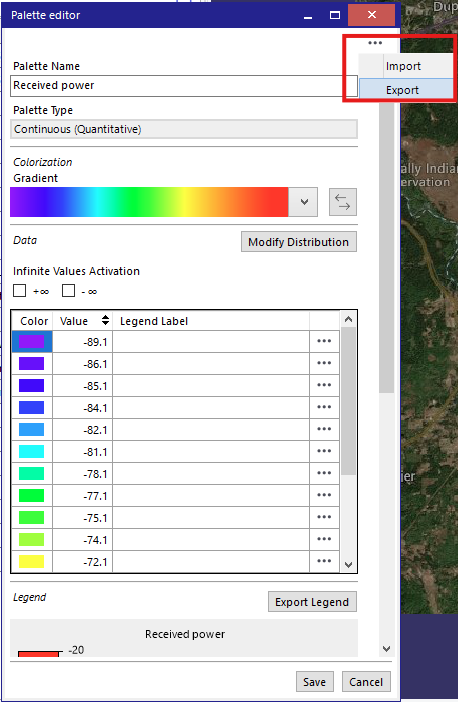
Click the “…” button at the top-right corner of the Palette editor window.
-
Use the Import or Export options as shown in the screenshot below.
2. Change Default Palette Settings
To avoid modifying palettes for every map, you can set default palettes. There are two levels of default palette configuration:
Project Level (SaaS and Desktop Users)
-
Right-click (or click the … button) on Results → Cell coverage in Scene manager.
-
Select the metric you want to set the default palette.
-
Click Edit default palettes.
-
Select a technology and a metric and click Edit Palette.
-
In the Palette editor window, modify the palette or import a palette file.
-
Click Save button in the Palette editor to save the Palette.
All future simulations of this metric in this project will use the updated palette.
Note: This change applies only to the current project.
Application Level (Desktop Users Only)
-
You can replace the default palettes stored in the application directory.
-
Default path:
C:\Program Files\Siradel\SmartCityExplorer\bin\plugins\S_5GConnect\Resources\Palettes -
Steps:
-
Create or export your custom palette configuration.
-
Replace the files in the above directory with your custom palettes, with the original file names.
-
Important: Back up your palettes before upgrading Planner, as updates overwrite these files.
Note: SaaS users cannot modify palettes at the application level.
Best Practices
-
Always back up your custom palettes before software updates.
-
Use project-level changes for temporary or project-specific visualization needs.
-
For desktop users, use application-level changes for consistent palette usage across all projects.